 If you’re running the WordPress CMS on your website you may be vulnerable to security threats if the proper precautionary measures are not taken. In particular, 2013 has seen it’s share of attacks on WordPress websites leaving many with hijacked, sluggish or nonworking sites. One of the attacks focused on cracking the default administrator username: admin. Now, more than ever, it is crucial for WordPress website owners to safeguard their site by changing their ‘admin’ username to something more complex. The following is a detailed, step by step, set of instructions on how to do so.
Change WordPress Username Instructions:
1. Login to your cPanel. Scroll down to the databases section and click on phpMyAdmin.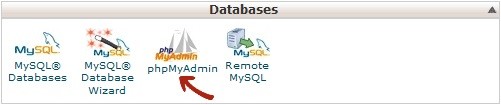
2. On the left hand side, select the database that your site is hosted in.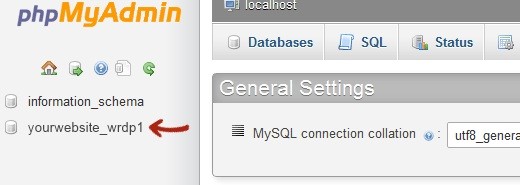
3. Then (again, on the left side), scroll down to the table wp_users.
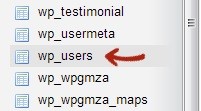
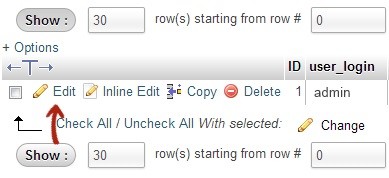
4. Once you click wp_users, on the right side you will see the username that you want to edit, click edit.
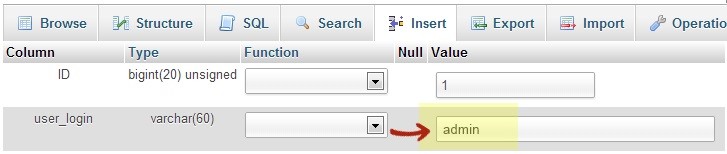
5. Lastly, Change the user_login value to whatever name you would like to login. For example you can replace ‘admin’ to ‘mikesmith’. Click ‘Go’ on the bottom of that page and you’re all set!
Additionally, the following is HIGHLY recommended to ‘Up’ your security:
- Use a Strong Password
- Use a security plugin like: www.WebsiteDefender.com/secure-wordpress-plugin/
- Keep WordPress Up To Date
- Backup your site – often!
- Visit Codeforest for some more in-depth WordPress security tips here: www.Codeforest.net/10-wordpress-security-tips-that-could-save-your-site
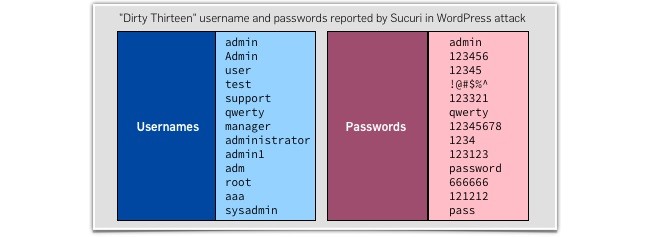
- Avoid common (and simple) usernames and passwords. In particular, avoid the following (thanks to Brian Krebs for the list):
Hope these tips are helpful and be sure to implement them ASAP – WordPress attacks are becoming more frequent and advanced! ‘Til next time!
Please comment below, feedback appreciated! ↓↓ Thank You
—–
Tim Dugan | WebServicesCT.com